Unlock your ZETA
Locking ZETA is reversible. You can begin unlocking anytime, but there’s a 21-day waiting period before the ZETA can be claimed back to your wallet. This article walks through the unlock flow and explains what happens to your rewards and plan during the wait.
Before you start
A few things to know before tapping Unlock:
- Rewards stop immediately on the amount you’re unlocking. Anuma Tokens stop accruing on that portion the moment the unlock transaction confirms.
- Pro plan ends immediately if unlocking drops your locked balance below 80,000 ZETA. You fall back to your underlying plan (Free, unless you also pay for Pro through Stripe — see the FAQ).
- Claim your ZETA after the 21 days are up. ZETA doesn’t return automatically — you’ll see a Claim button on the position once the unlocking period ends.
- Already-earned Anuma Tokens are safe. Claimed and unclaimed tokens stay yours through the unlocking period.
Steps
Step 1: Open Anuma Access
Tap Anuma Access in the sidebar. The dashboard shows your Locked Balance with a Lock ZETA button on the left and an Unlock button on the right.
Step 2: Tap Unlock to open Locking Batches
Tap Unlock. The Locking Batches modal opens, listing every position you currently hold — one row per wallet (your Anuma Account plus any external wallets you’ve locked from). Each row shows the wallet, the locked amount, and an action button.
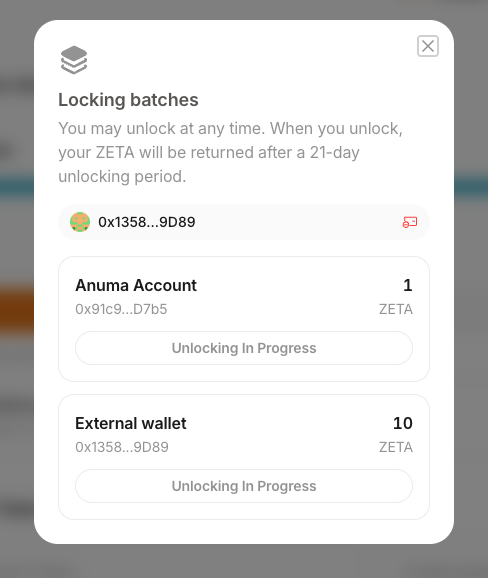
If a position belongs to a wallet you’re not currently signed in to, the row shows a Connect to unlock button instead. Switch to that wallet to interact with the position.
Step 3: Pick a position and tap Unlock
Tap Unlock next to the position you want to unwind. A second modal opens with the 21-day unlocking-period disclaimer and an Amount to Unlock field:
- Amount to Unlock — the amount you’re requesting from this position
- Balance That Can Be Unlocked — the position’s current locked amount
- Unlocking Period — 21 days, fixed by the staking contract
You don’t have to unlock the full position — partial unlocks are fine. Each unlock request you submit gets its own 21-day clock.
Step 4: Begin Unlocking
Tap Begin Unlocking. Your wallet prompts you to sign the withdrawal request transaction. Once it confirms on ZetaChain, the unlock period starts and the position row in Locking Batches switches to Unlocking In Progress.
Step 5: Wait out the 21-day unlocking period
The position row stays in the Unlocking In Progress state for the full 21 days. While the unlock is in progress, the Unlocking Banner appears on the dashboard as a reminder.
You can re-open Locking Batches anytime to see the countdown for each in-progress unlock.
Step 6: Claim your ZETA
When the 21 days complete, the position row switches to a Claim state. Open Locking Batches, tap Claim on the unlocked position, and sign the transaction in your wallet. Your ZETA arrives in the wallet that owns the position. The dashboard updates to reflect the new (lower) locked balance, or removes Anuma Access entirely if you unlocked everything.
Unlocking multiple amounts in parallel
You can request additional unlocks while one is already in progress. Each unlock has its own 21-day clock starting from when you submitted it. Locking Batches lists every active unlock alongside the corresponding position.
What happens to my rewards and Pro plan?
| Scenario | What happens |
|---|---|
| You unlock part of your stake | Rewards stop on the unlocking amount immediately. Rewards continue on the portion still locked. |
| You unlock enough to drop below 80,000 ZETA | Pro benefits end immediately. Already-earned Anuma Tokens stay yours. |
| You unlock 100% | All rewards stop immediately. Already-earned tokens stay claimable/redeemable. |
| You’re on paid Pro via Stripe and unlock | No change to your Stripe Pro subscription. Stripe keeps billing as usual. |
Cancelling an unlock
The contract does not support cancelling a withdrawal request mid-flight. Once submitted, the 21-day clock runs to completion. If you change your mind, the simplest workaround is to lock new ZETA while the unlock is in progress — your effective locked balance recovers immediately.
Good to know
- The 21-day period is set in the staking contract and applies to every unlock equally.
- You pay ZetaChain gas (in ZETA) when you submit the unlock request, but not when the ZETA returns at the end of the period.
- If you accidentally unlock more than you intended, you can lock new ZETA right away to restore your balance and plan tier. The unlocking request still runs its course in the background.
- If you encounter an error during the unlock transaction, your locked balance is unchanged. Try again from the dashboard.
Related articles