Audio
Audio Studio turns a description into a sound effect or a piece of music.
Available on: web, iOS, Android.
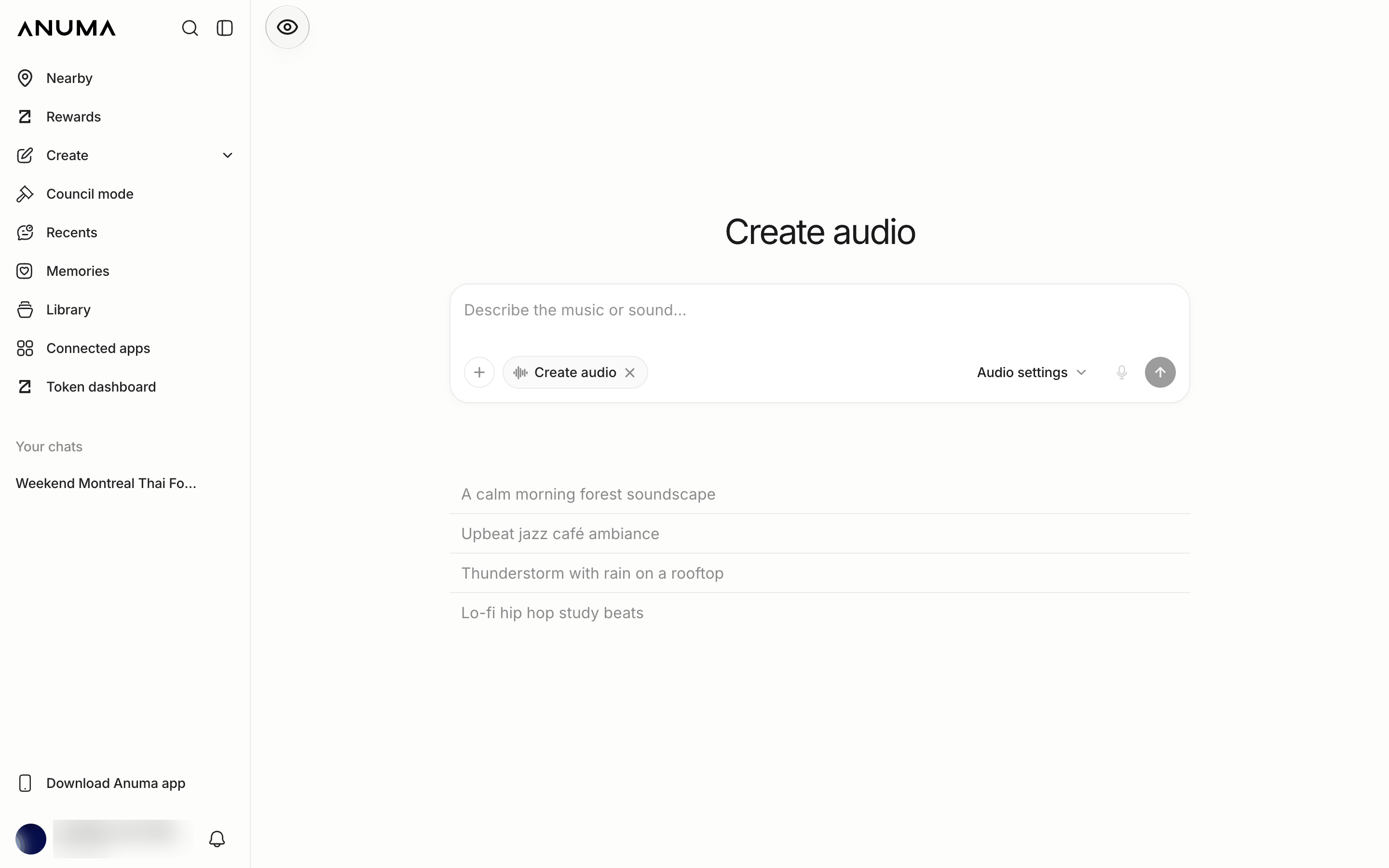
Steps
- Tap + → Create → Create audio (or Create → Audio in the app’s sidebar).
- Describe the sound: “a calm lo-fi beat for studying”, “a short notification chime”.
- Set the options: Type (sound effect or music), Duration, Loop, and Prompt influence.
- Send, listen in the conversation, and download from the player toolbar.
Good to know
- Available on every plan. Each audio model shows its credit cost next to its name.
- Results are saved to your Library like other creations.
Related articles
Last updated on