Connecting external services
Connectors link your external tools to Anuma so your AI can read from them and, where you allow it, act in them. Which connectors appear is set per account; the Connected Apps page is the source of truth.
Available on: web, iOS, Android (Agentic Reservations is web only).
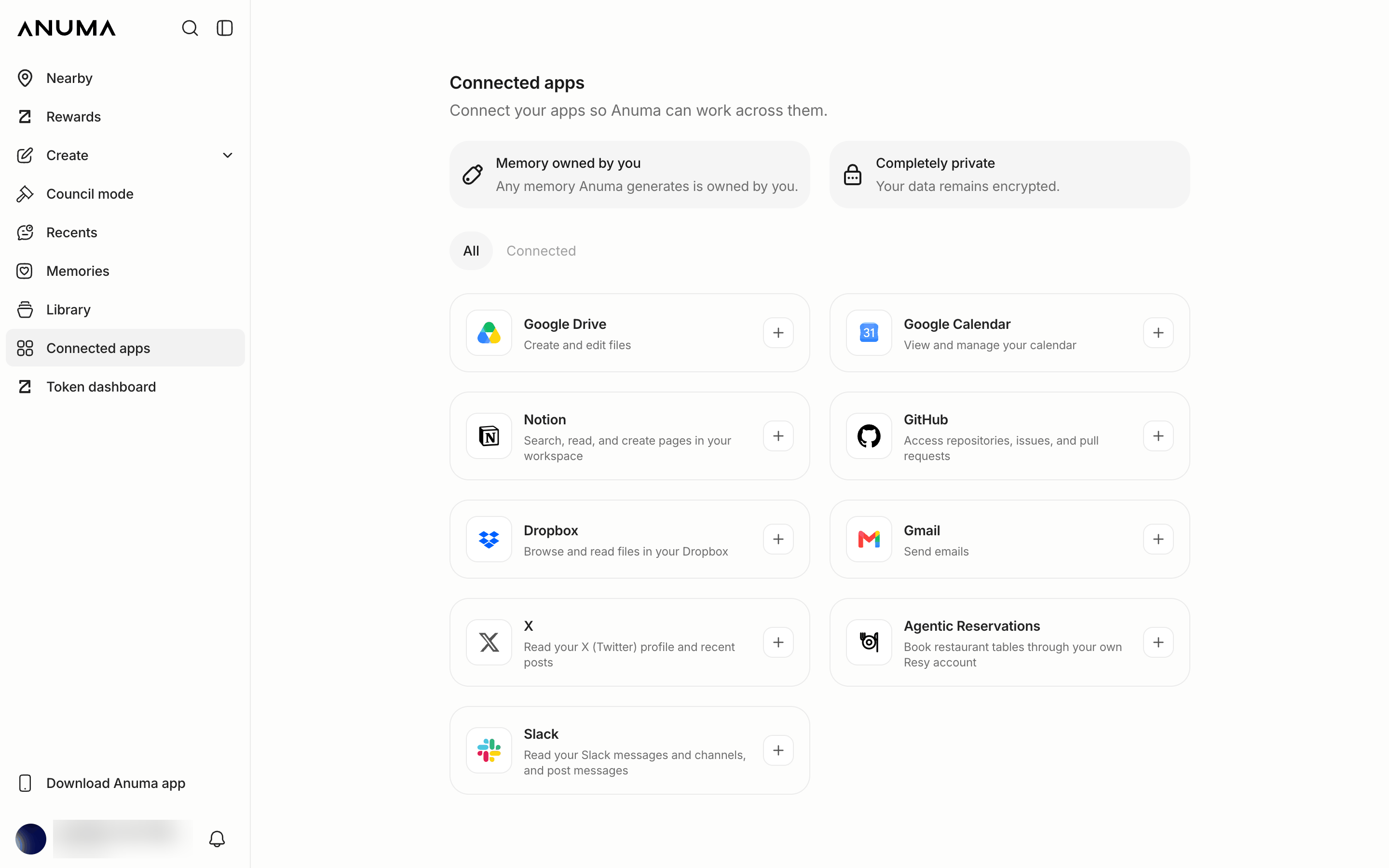
Available integrations
| Service | What Anuma can do today |
|---|---|
| Google Calendar | View, create and update events |
| Google Drive | Create new files and edit files it created. Reading, searching and browsing are paused while Google finishes a security review |
| Gmail | Send emails. Reading is paused |
| Notion | Search, read, create and edit pages and databases, move and duplicate pages, comment |
| GitHub | Search repos, read code, create and manage issues, review pull requests |
| Slack | Read channels and threads, look up people, post messages (each post is held for your approval before it sends) |
| Dropbox | Browse and read files |
| X | Read your profile and recent posts |
Every Gmail send, every Slack post, every GitHub write (including creating a public repository), and every write to Drive, Calendar or Notion asks for your approval first, and Council Mode never runs those writes. Google shows a disclosure screen before you connect any Google service.
Steps
Step 1: Open Connected Apps
Tap Connected Apps in the sidebar to open the Connected apps page.
Step 2: Find the service
On the All tab, browse the services available to your account.
Step 3: Authorize a service
Tap the + on the service’s card and complete the OAuth authorization flow. You’ll be redirected to the service to grant Anuma access.
Step 4: Use in conversations
Once connected, your AI can reference data from connected services during conversations. For example, ask “What meetings do I have tomorrow?” or “Summarize the latest changes in my repo.”
Step 5: Disconnect anytime
Open the Connected tab on the Connected apps page and disconnect any service to revoke access.
Good to know
- Each connector uses OAuth. Anuma keeps the authorization so it can act for you; disconnecting revokes it.
- Connected services only access data you authorize. You can disconnect at any time.
- Anuma references external data in real-time during conversations. It doesn’t permanently store copies.
- Your privacy controls still apply. You choose what context your AI can access. PII redaction does not scan connector data.
Agentic Reservations (web)
Connect your Resy account and Anuma can find availability and book a table for you from chat. Booking pays a small fee (up to $0.01 per booking) from the Solana wallet that comes with your account; you grant that with Allow payments when you connect, and Anuma shows a confirmation card before it books or cancels. You need a Resy account with a card on file.
Related articles