Auto Model — automatic model routing
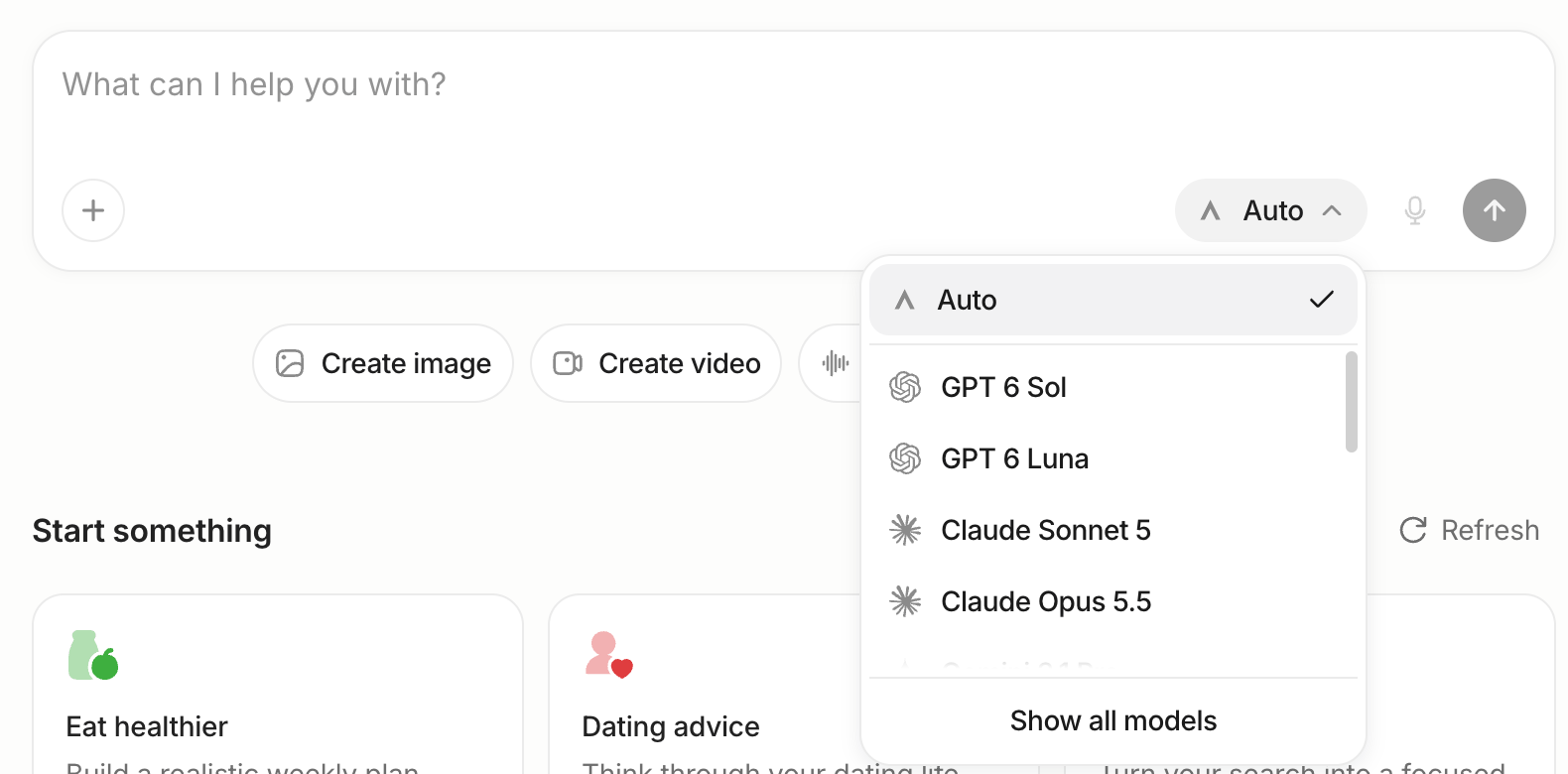
Auto Model lets Anuma automatically choose the best AI model for your prompt. Instead of manually selecting a model each time, Anuma routes your question to the most suitable model based on the task — coding questions go to code-optimized models, creative writing to creative models, and so on.

How to use Auto Model
Step 1: Open the model selector
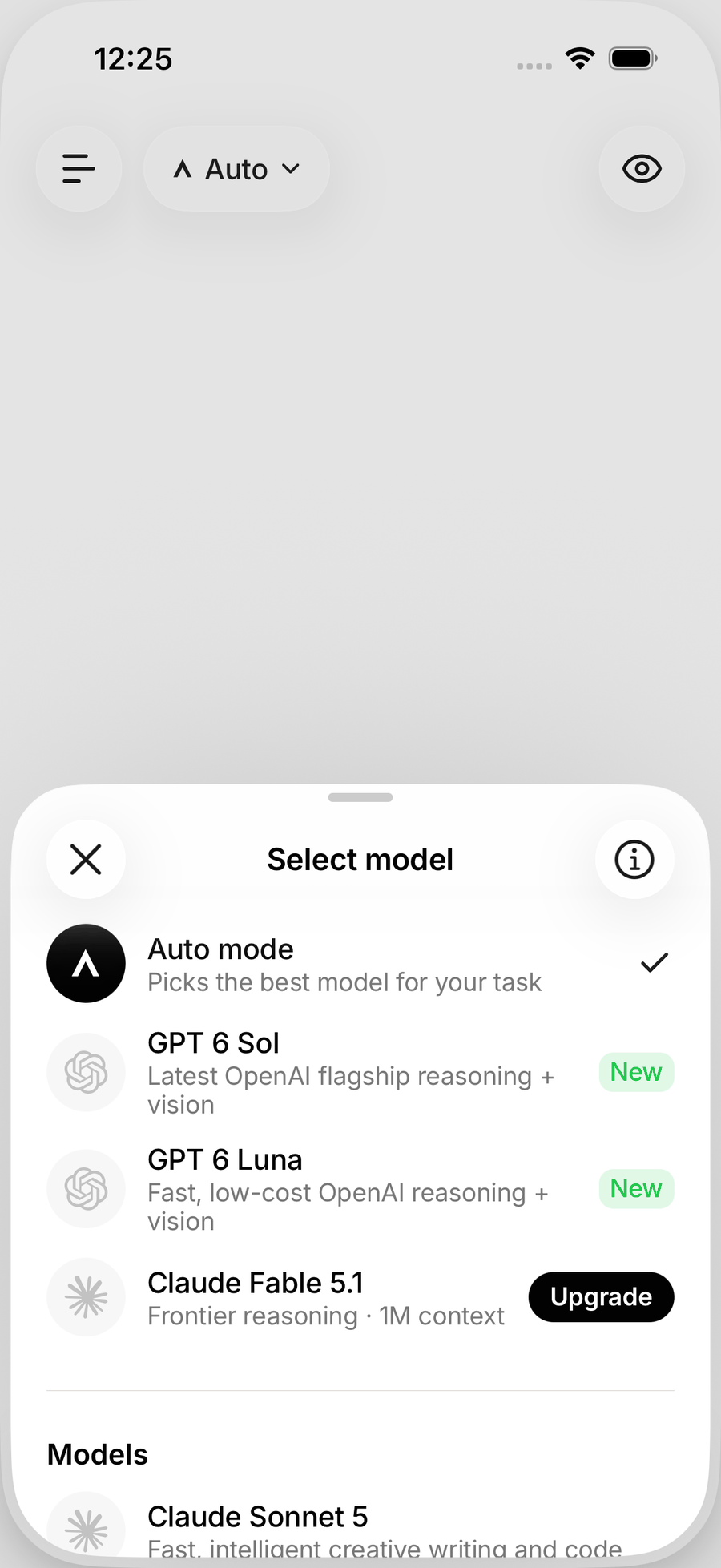
Tap the model selector at the top of any chat.
Step 2: Select “Auto”
Choose Auto from the model list. It appears at the top, above individual models.
Step 3: Start chatting
Send your message as usual. Anuma automatically selects the best model for your prompt. You can see which model was chosen in the response.
Step 4: Override if needed
If you prefer a different model for a specific message, switch back to manual selection at any time. Auto Model doesn’t lock you in.
When to use Auto Model vs manual selection
| Use Auto Model when… | Use manual selection when… |
|---|---|
| You want the best model for each task without thinking about it | You have a preferred model for a specific type of work |
| You’re switching between different types of tasks (coding, writing, analysis) | You need a specific model’s capabilities (e.g., Claude for long documents) |
| You’re new to Anuma and don’t know which models are best | You want to control credit costs by choosing cheaper models |
Good to know
- Auto Model uses Anuma’s Bifrost routing to match your prompt with the best available model.
- Your memory context is preserved regardless of which model Auto selects.
- Every model is available on every plan, so Auto Model can route to any model regardless of your tier.
- You can override Auto Model at any point in a conversation.
Related articles
Last updated on