Importing conversations
Bring what you have already told other AI apps into Anuma. Memories extracted from the import load into every model from then on.
Available on: web, iOS, Android (document import is web only).
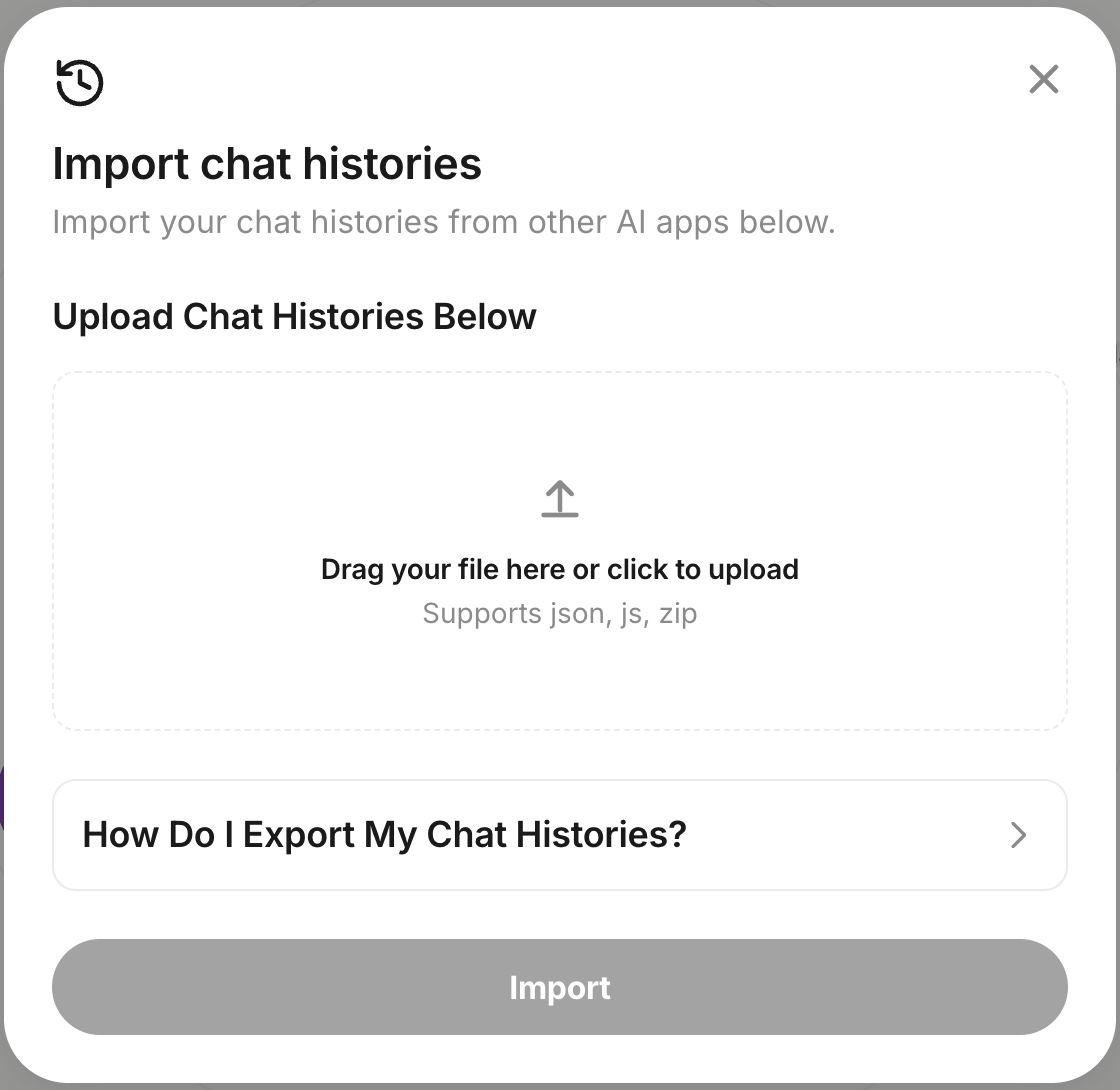
From ChatGPT, Claude or Grok
- Export your data from the other app.
- ChatGPT: Settings → Data Controls → Export Data.
- Claude: Settings → Account → Export Data.
- Grok: Settings → Data → Export. You receive a ZIP or JSON file.
- In Anuma, open your memories from the sidebar (Profile, then All memories on the web) and choose Import & export (web) or the import option in the app.
- Pick the provider and upload the file. You can upload several files at once.
- Wait for processing. The conversations appear in Recents, and the memories Anuma extracts from them appear in your memories with topics.
From a document (web)
In the same menu, choose Import from a document and upload a PDF or Word file. Anuma reads it (scanned PDFs are OCR’d) and turns what it learns into memories.
Good to know
- Imported conversations are stored like any other conversation: encrypted in transit and at rest, backed up if backups are on.
- Memories from an import follow the privacy eye’s current setting. If you do not want them shared with Nearby, switch to Private mode before importing, or review them in your memories afterwards. See Memory and Nearby.
- Importing is a one-time copy. New conversations in other apps need another export.
- There is no Gemini import today.
Related articles
Last updated on