Council Mode
Council Mode sends one prompt to up to four models at the same time, so you can compare how they answer and keep the best.
Available on: web, iOS, Android.
Web
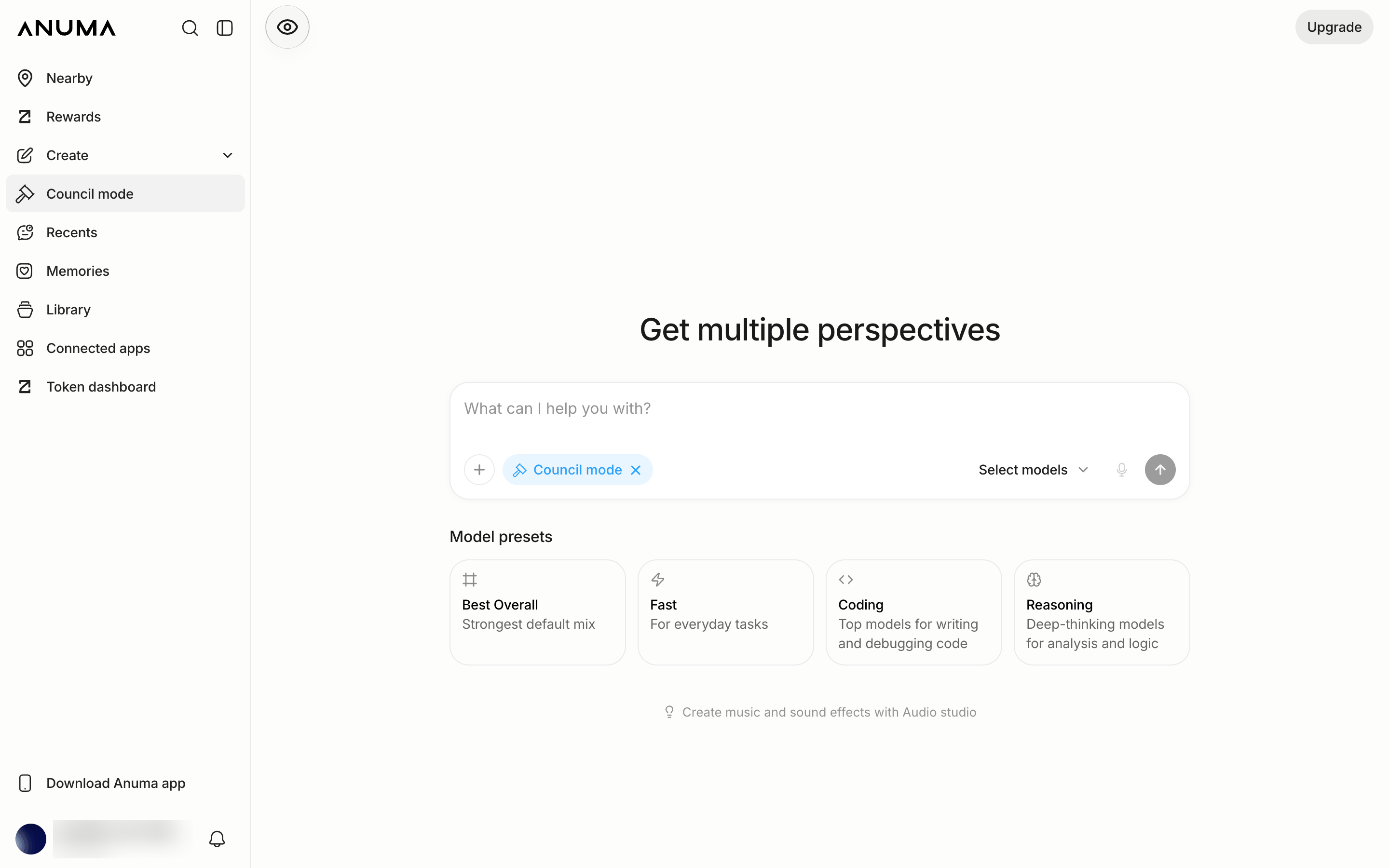
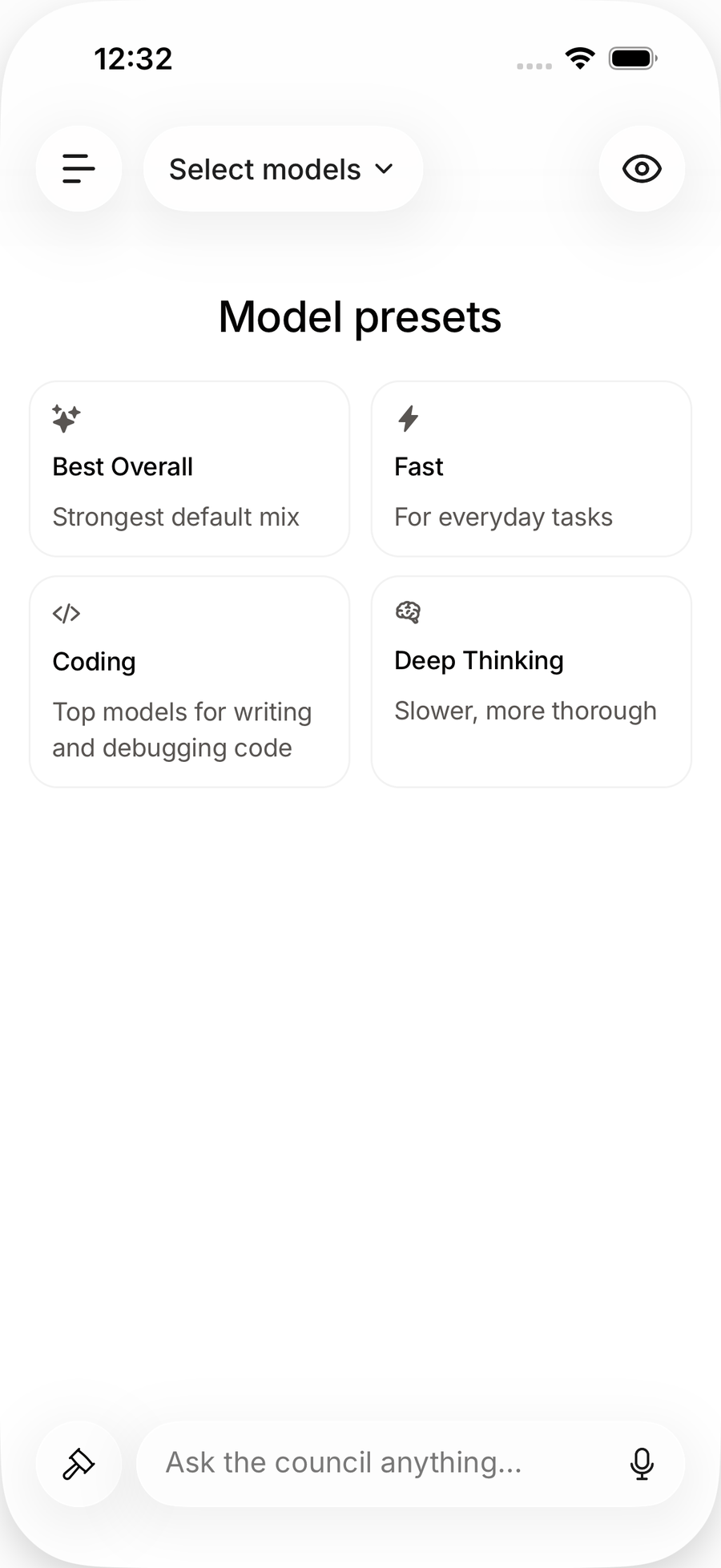
Start a council
- From the sidebar: Council mode (on the web) or Create → Council mode (in the app).
- From any chat: + → Council mode, or Ask the council under an answer to bring more models into a conversation you already have.
Pick the models
Choose two to four, or start from a preset: Best Overall, Fast, Coding, Reasoning (called Deep Thinking in the app), or Your Top Models. Mix Private and closed-source models freely. Each pick shows as a chip you can remove.
Read the answers
Every model answers in its own column (stacked on a phone). Once two or more have finished, Anuma adds a Summary that combines the strongest parts and an Analysis of where they agree and disagree. Unify responses turns them into a single combined answer.
Keep the responses you like with the filter; when one is left, the chat continues with that model.
Files in a council
Attach a file or image and every model in the council gets it, so you can compare how each reads the same document.
Good to know
- Each model’s answer costs its own credits, plus a little for the Summary and Analysis. Four models cost roughly four replies. See Credits and usage.
- Council uses your memory like a normal chat; every model sees the relevant memories.
- Connector actions that write (sending an email, editing a file) are not run from a council.
- Want one extra take instead of a panel? Use Second Opinion.
Related articles