Images and videos
Describe it and Anuma makes it, in the same conversation that knows your taste.
Available on: web, iOS, Android.
Create an image
- Tap + → Create → Create image (or Create → Image from the sidebar in the app).
- Describe the image. Pick a style if you like: Realistic, Sketch, Monochrome, Plushie and more.
- Send. Refine with follow-ups (“warmer light”, “make it square”).
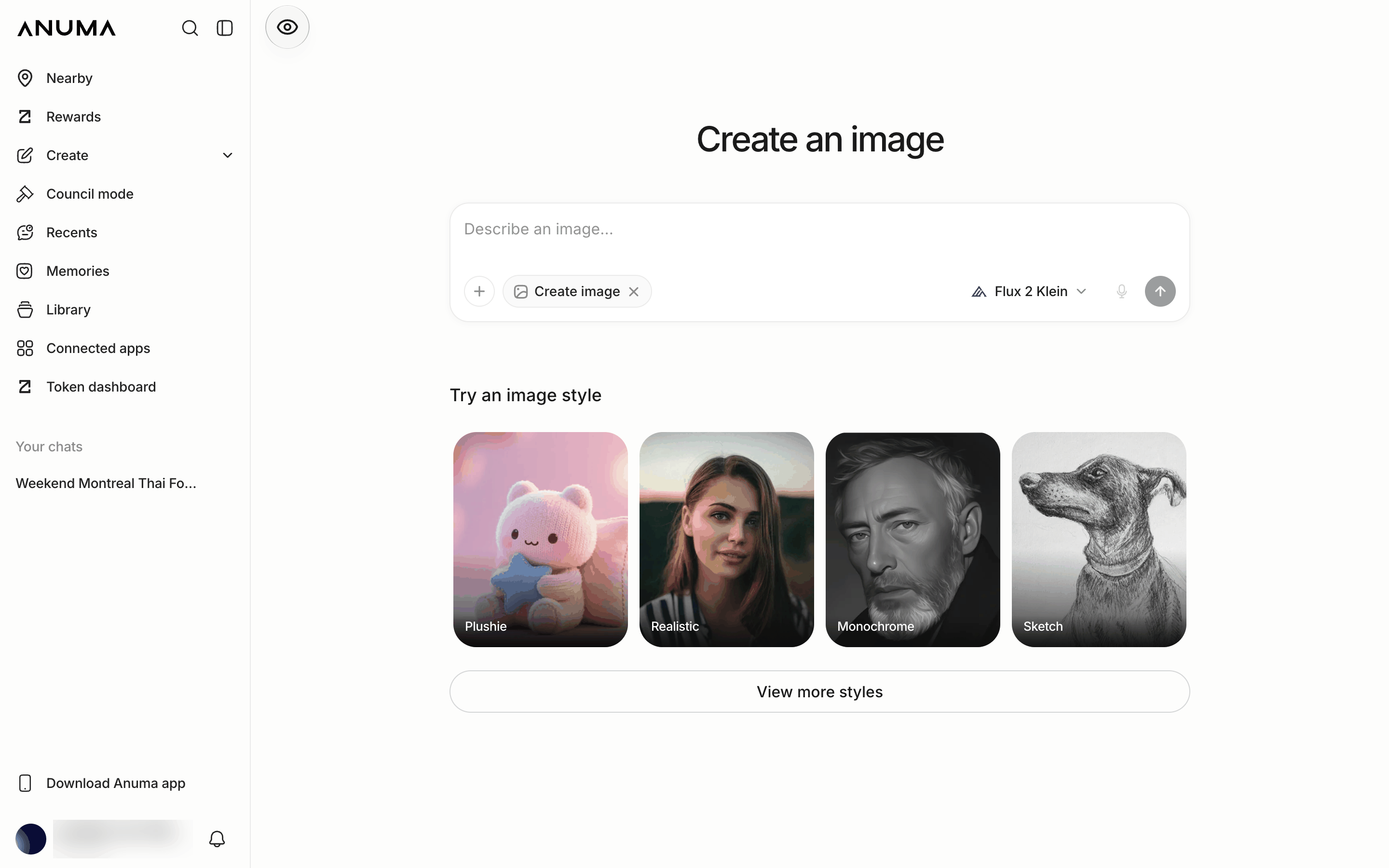
Models: Flux 2 Klein (default) and Flux 2 Pro on every plan. Starter and Pro add Nano Banana 2, Nano Banana Pro, Nano Banana Flash and Grok Imagine. On Free, a locked model falls back to Flux 2 Klein.
Create a video
- Tap + → Create → Create video.
- Describe the clip and choose a model: Veo 3.1 Quality (default), Veo 3.1 Fast, Grok Imagine, Gemini Omni Flash, Kling v3 Pro, Vidu Q3, PixVerse v6, Seedance 2.0 or Kling v2.6 Pro.
- Send and wait; video takes longer than images.
Your creations
Everything you generate is saved to your Library (sidebar), on web and mobile alike. From the viewer you can download it or Create public link; those links expire after 24 hours.
Good to know
- Image and video generation use credits; video and premium image models cost more. See Credits and usage.
- Images you generate while in Public mode can appear in your Nearby profile gallery. Switch the eye to Private mode first if you do not want that. See Memory and Nearby.
Related articles
Last updated on