Get on the map
Setting up Nearby takes about three minutes. New accounts start the setup right after they sign in; existing accounts can start it any time from the Nearby row in the sidebar.
Available on: web, iOS, Android.
Before you start
- You must be 18 or older. Anuma asks for your birthdate and keeps it private; only your age shows on your profile.
- You need a US phone number that can receive a text. Nearby verifies every profile by phone so that everyone on the map is a real person. If you already verified your number when you signed up, this step is skipped.
- You need to be in the launch area (New York Metro today). If you are not, the setup turns into a waitlist. See Where Nearby is available.
The steps
-
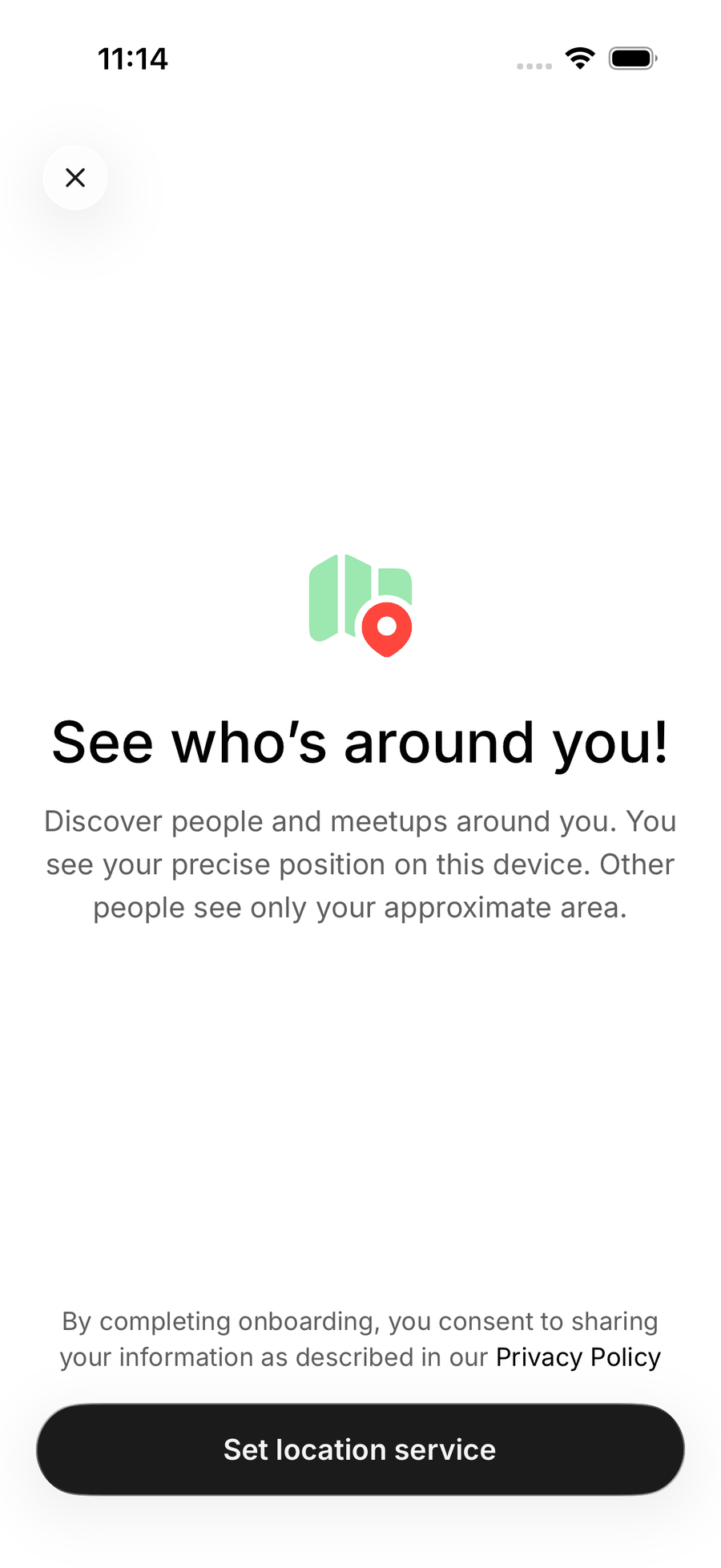
Share your location. Tap Set location service and allow location access. You see your precise position on this device. Other people see only your approximate area. Location is only shared while Anuma is open, and never while you are in Private mode.
-
Read the intro and tap “Create my profile”. This is the consent step: completing the setup means you agree to sharing your information as described in the Privacy Policy .
-
Verify your phone number. Enter your number, then the six-digit code Anuma texts you.
-
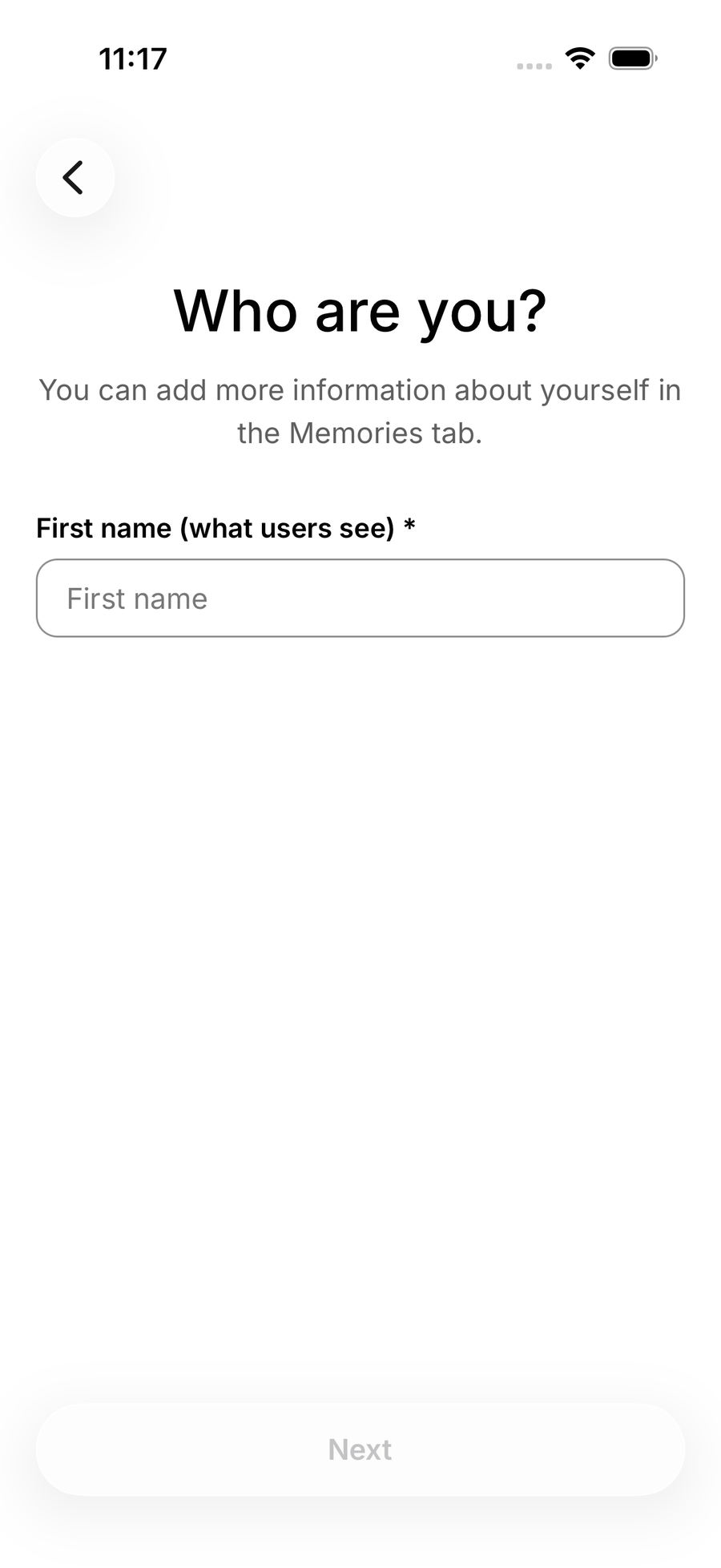
Add your first name. This is what other people see.
-
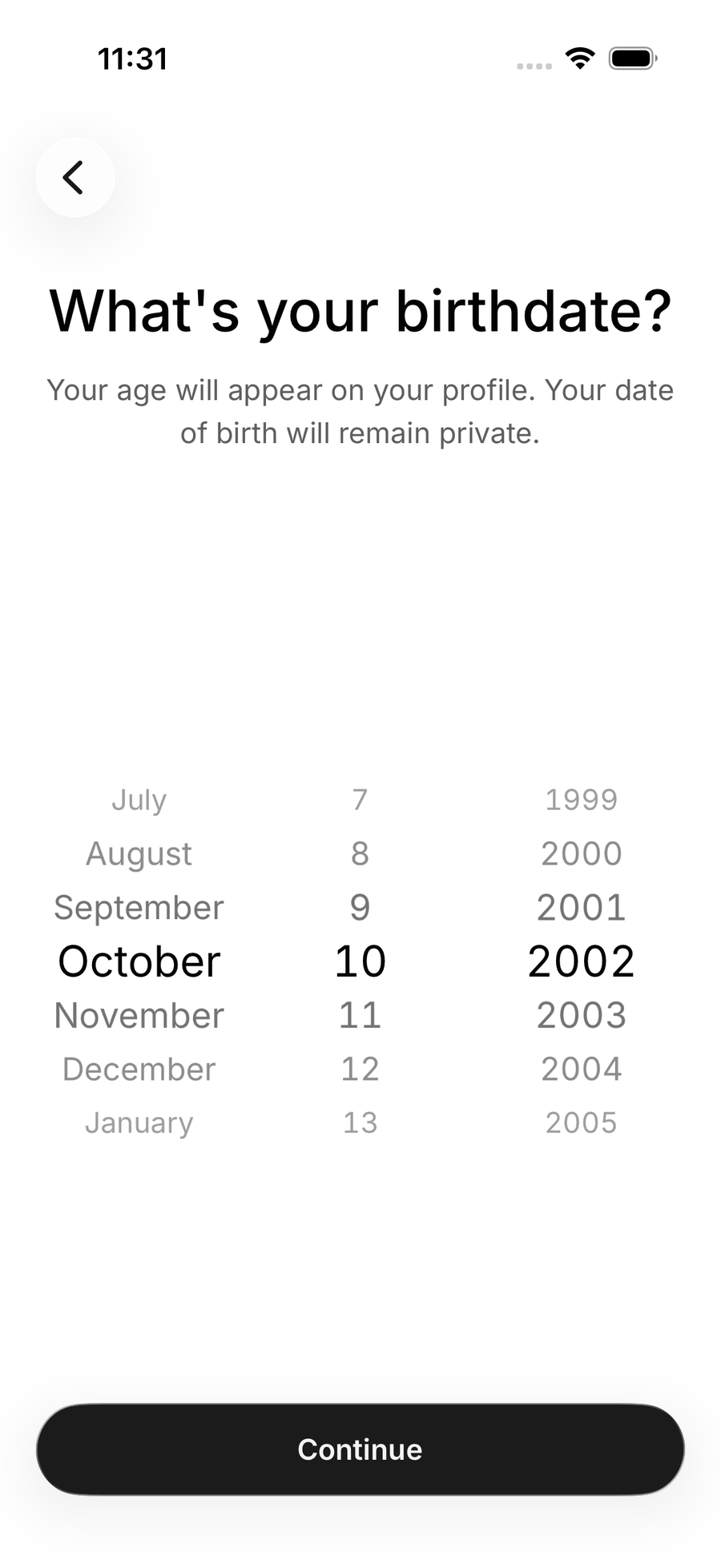
Enter your birthdate. Your age appears on your profile. Your date of birth stays private. If you are under 18, Nearby is not available and the setup ends here.
-
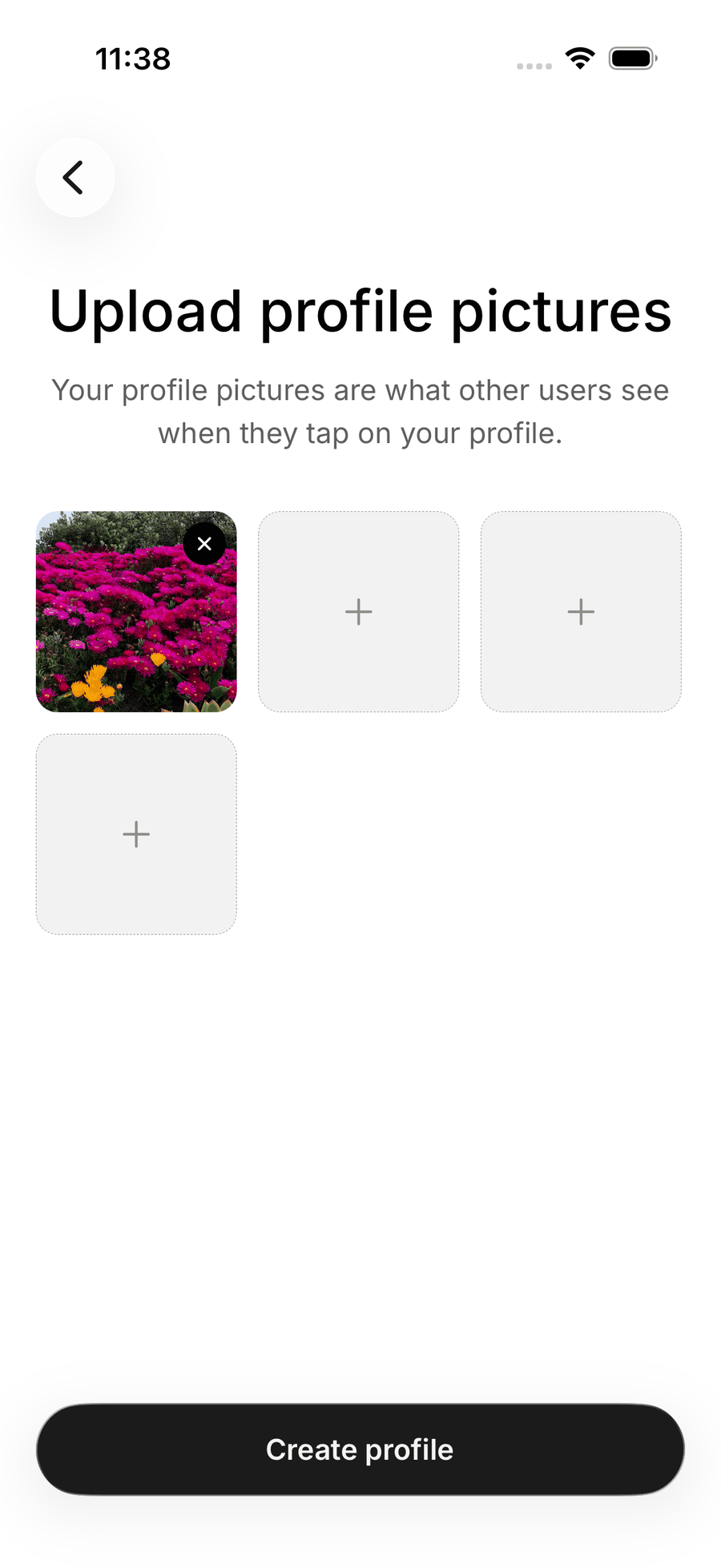
Upload photos. At least one, up to four, 8 MB each. Use Take Photo or Choose photos. Photos are reviewed by moderation before they appear.
-
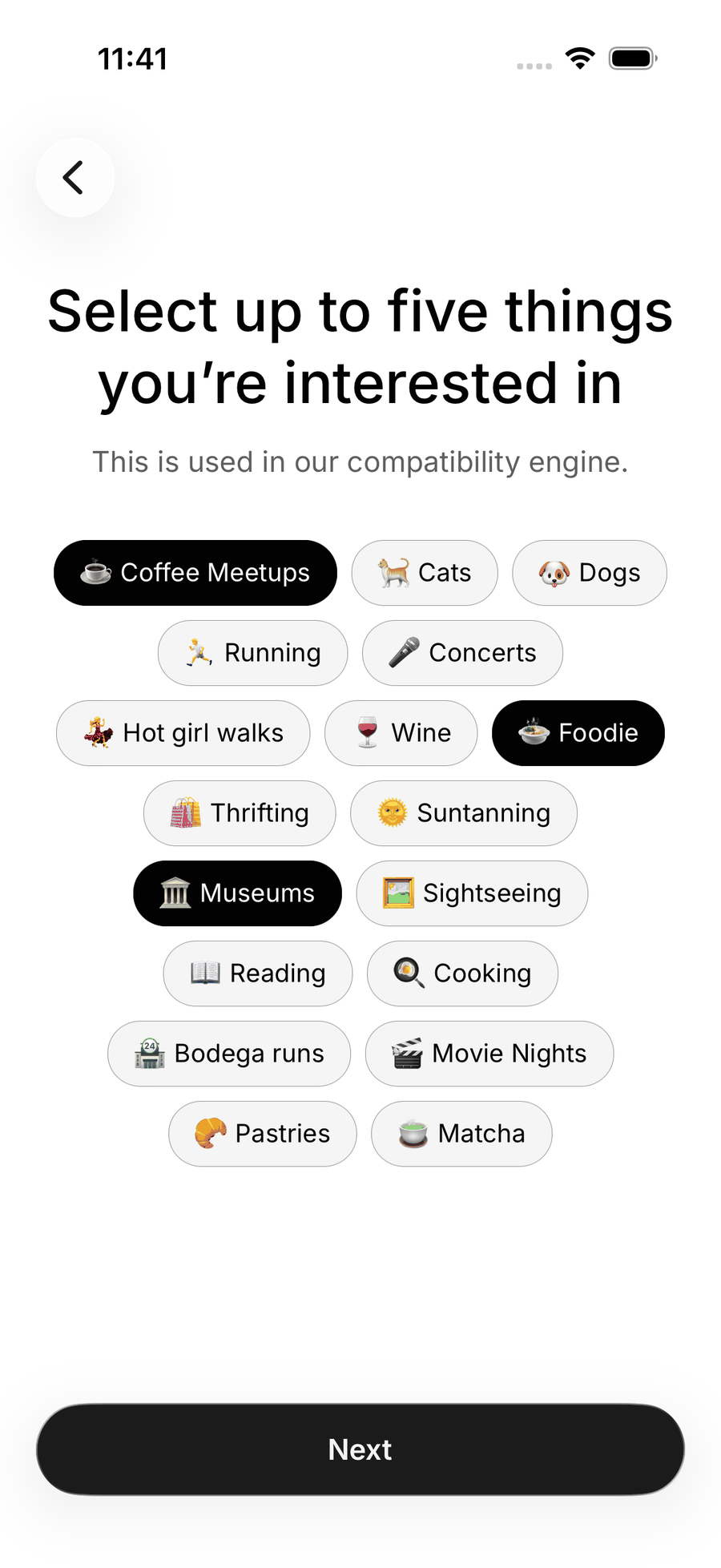
Pick your interests. Choose up to five to start (you can add more later, up to twelve). Interests feed the compatibility engine.
-
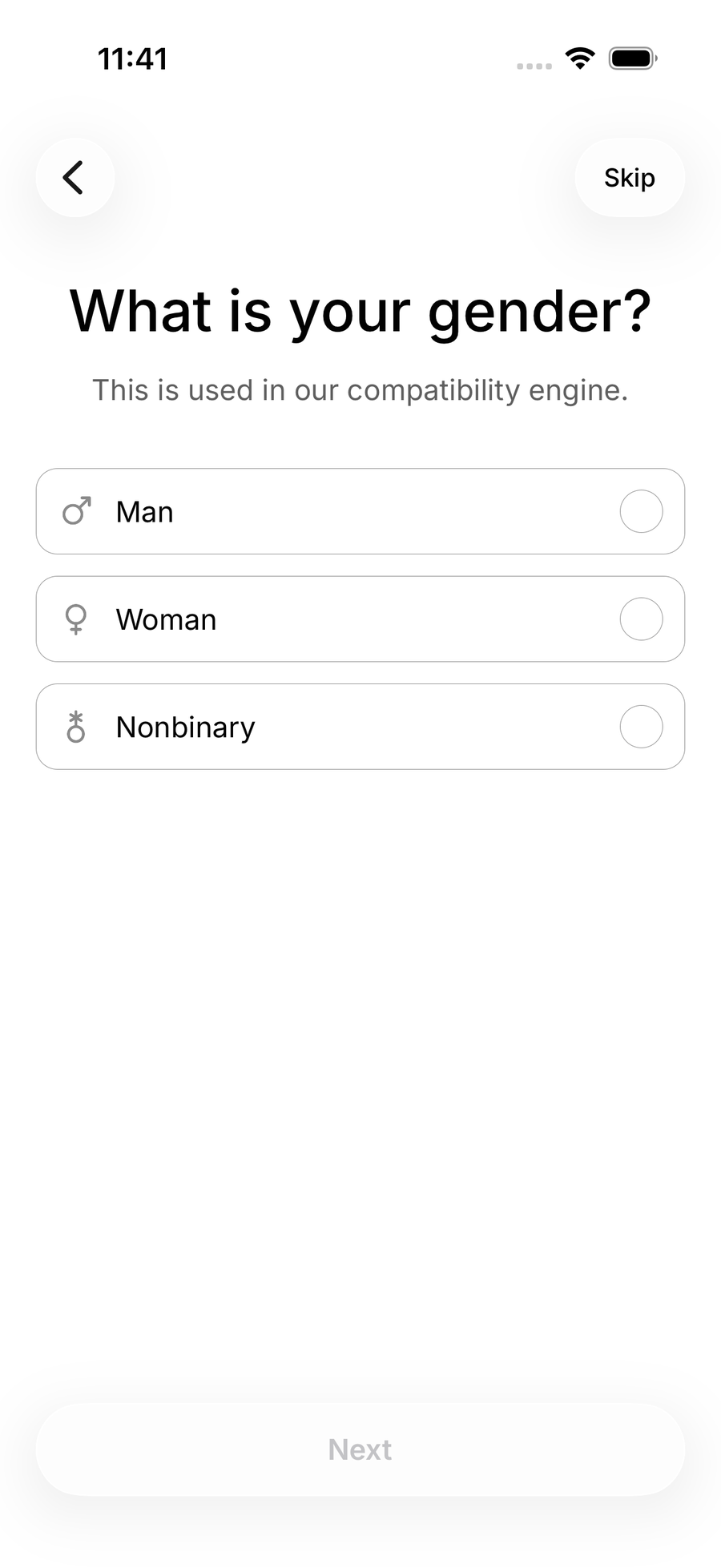
Say how you identify (optional). Gender, and a few more fields later in your profile. Skip anything you do not want to share.
-
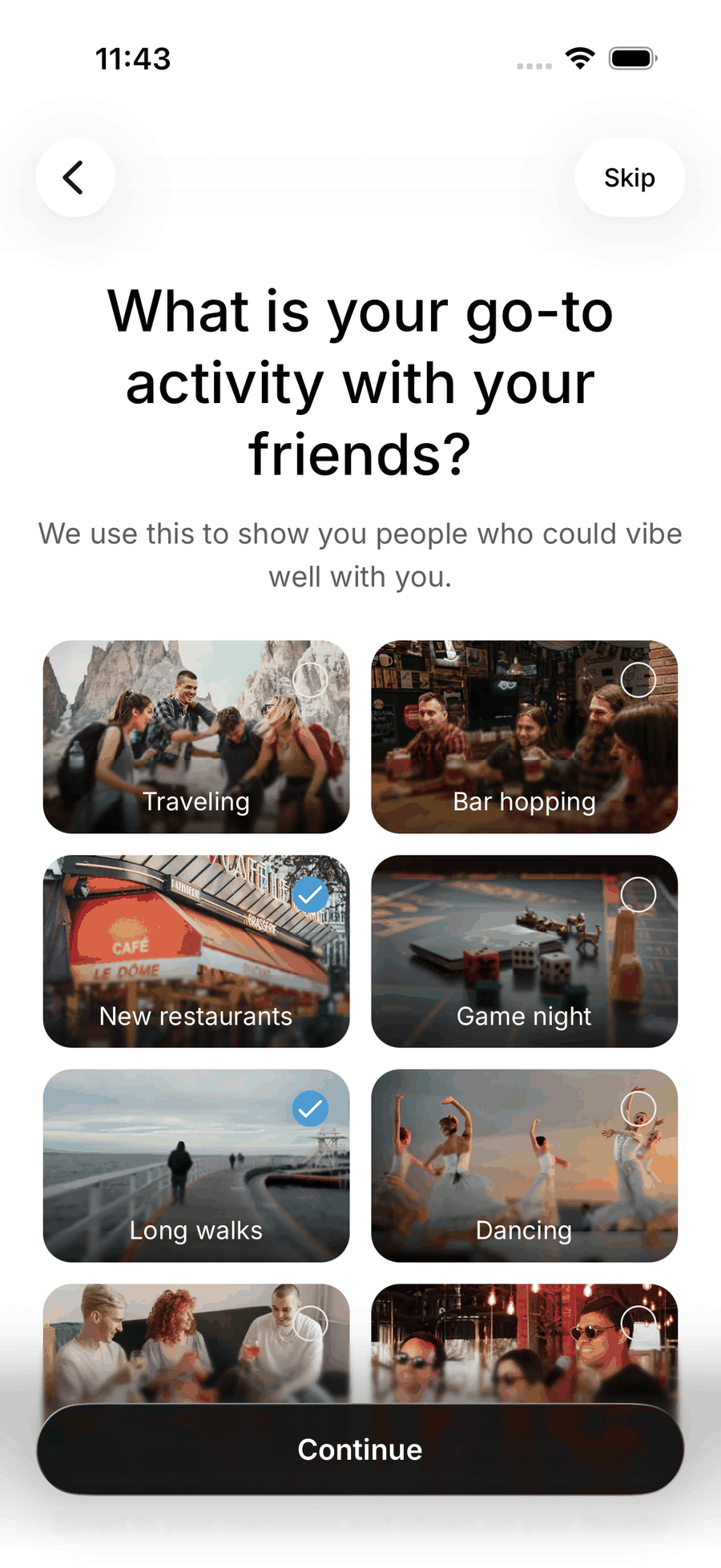
Answer three questions (optional). Anuma picks three from a pool, such as “What makes you feel human?” Your answers are saved to your memories and shown on your Nearby profile, and they help Anuma find people who could vibe well with you.
-
Say hi to someone. Anuma shows a few people to wave at first. Waving is optional.
-
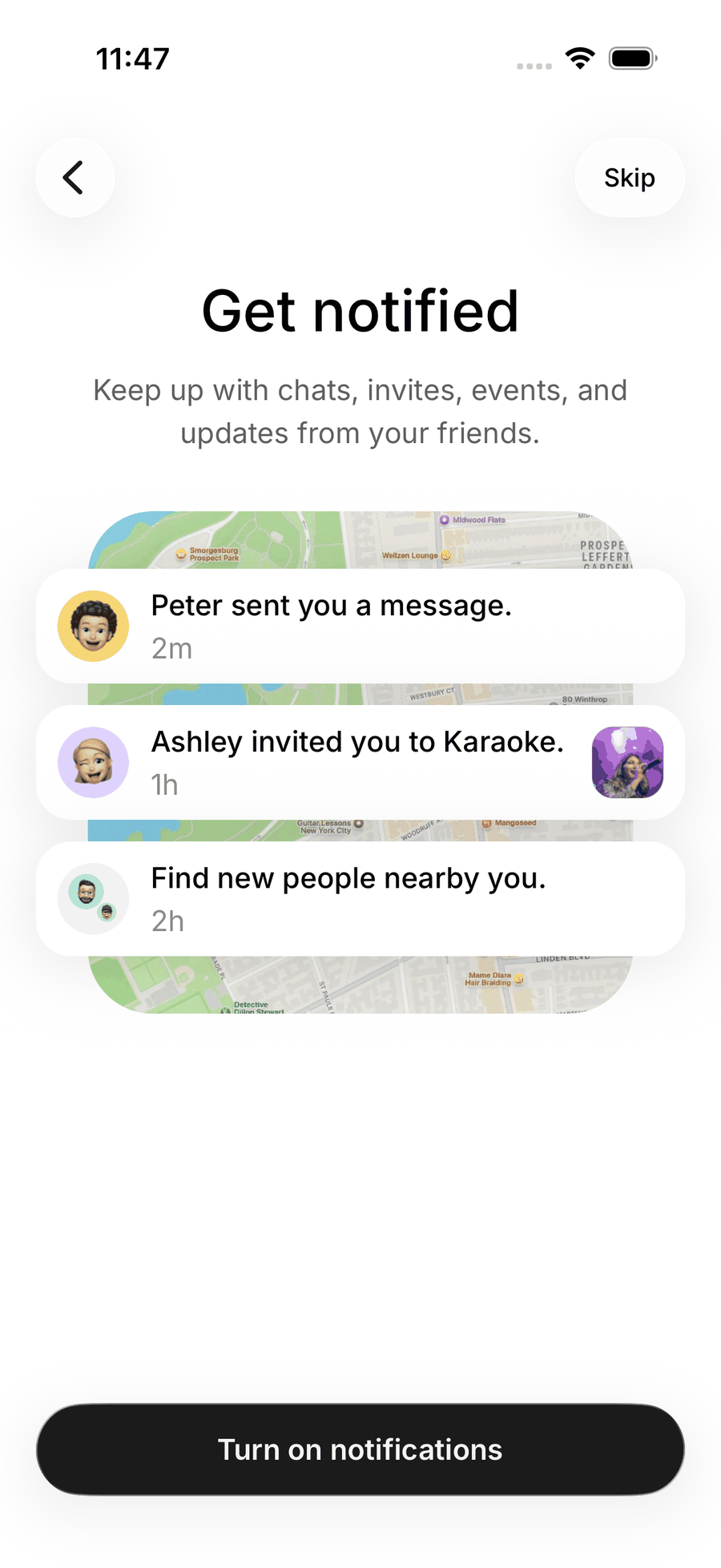
Turn on notifications (optional). You can do this later from Settings.
-
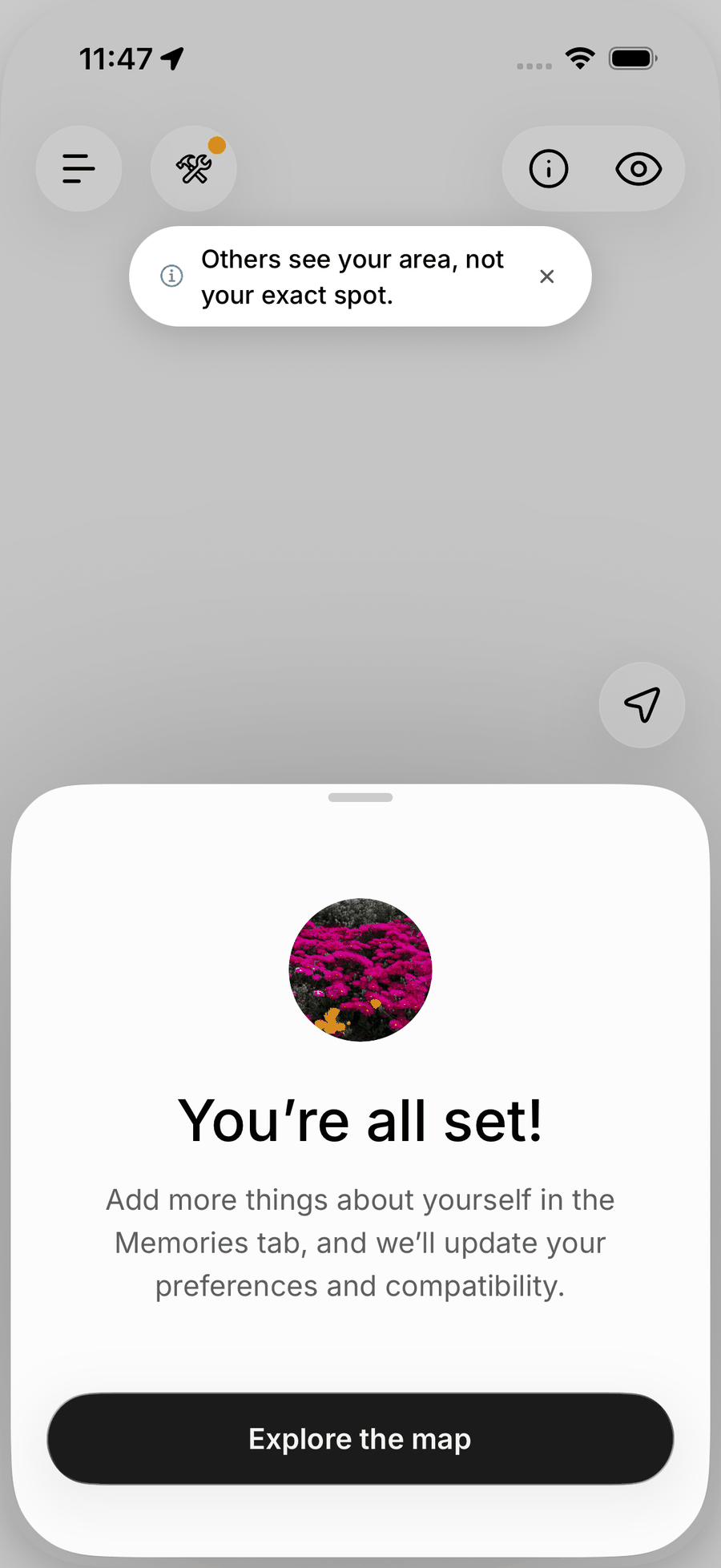
Explore the map. You are set. Add more about yourself in your memories (Profile in the sidebar on the web, Memories in the app) and Anuma keeps your profile and compatibility up to date.
The setup screens, in order:
After setup
- Your profile is created only at the last step. If you leave the setup early, nothing is published.
- You start in Public mode, which means you are on the map and people can see your profile. Switch to Private mode any time with the eye icon. See Public and Private mode.
- To change photos, interests or anything else, open your profile and tap Edit profile. See Your profile.
Something went wrong?
Location checks that fail, a phone number that is already in use, a white screen during setup: see Nearby troubleshooting.
Related articles